 BoreTherm
FEM mesh viewer
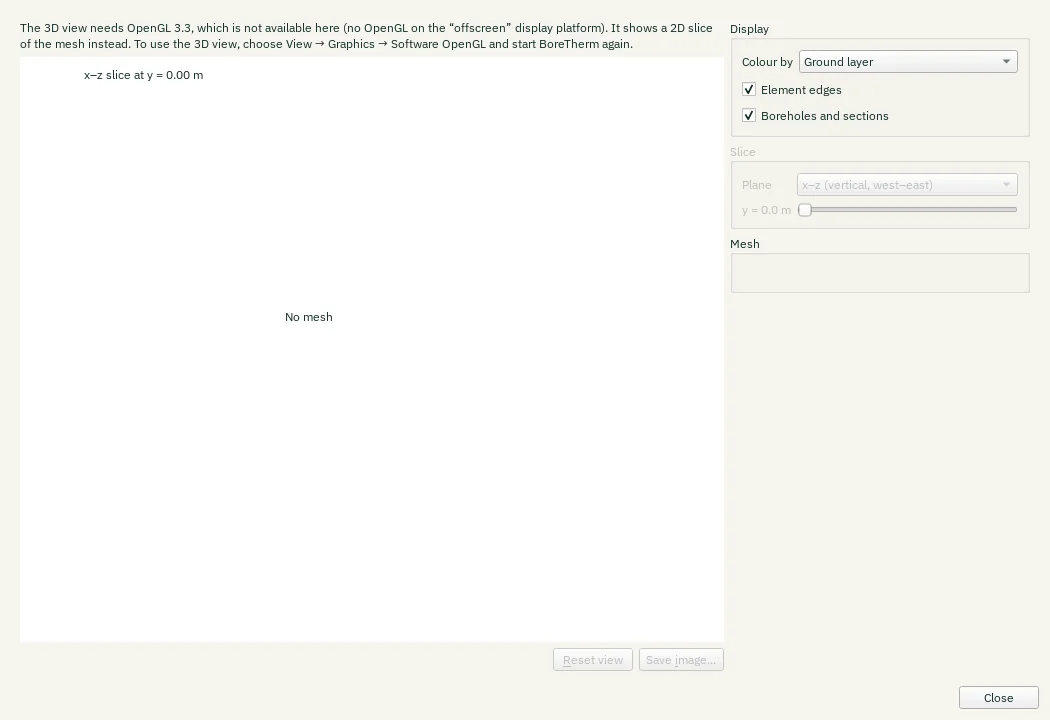
Inspect mesh quality and temperature fields. Switch 3D or 2D slices, choose depth, time and colour limits, rotate/zoom, animate or export an image. On the headless platform the viewer uses a 2D slice. Use View → Graphics → Software for a PC without a suitable hardware driver.
Step-by-step workflows · Menus and keyboard
| Control | Meaning / action | Unit | Range / choices | Example value |
|---|---|---|---|---|
| Cancel | Close without accepting unapplied edits. | |||
| Reset view | Show the whole mesh from the south-west (3D) or fit the slice (2D) | |||
| Save image… | Save the view with its legend as a PNG or JPEG picture | |||
| Colour by | Colour the elements by their ground layer, their size, their shape quality or, after a run that provides it, the temperature | Ground layer / Cell size / Element quality / Temperature | ||
| Element edges | Enables or disables this option. | |||
| Boreholes and sections | Enables or disables this option. | |||
| Boreholes through the surface | Draw the boreholes on top, also where the mesh hides them | |||
| Outer surface | Enables or disables this option. | |||
| Depth scale | Vertical exaggeration of the 3D view (1 = true scale) | × | 0.1 to 20 | 1 |
| Perspective | Enables or disables this option. | |||
| From | Select one of the listed alternatives. | |||
| To | Select one of the listed alternatives. | |||
| One frame back | One frame back | |||
| Mesh play | Play / pause the animation over the chosen time range | |||
| One frame forward | One frame forward | |||
| Playback speed (also of the exported animation) | Playback speed (also of the exported animation) | 1 frames/s / 2 frames/s / 4 frames/s / 8 frames/s / 12 frames/s / 24 frames/s | ||
| Loop | Enables or disables this option. | |||
| Colour scale | Fixed: the same colours mean the same temperature in every frame of the range | Fixed over the time range / Per frame | ||
| Save animation… | Save the frames of the time range as an animated GIF or as PNG pictures | |||
| Plane | Select one of the listed alternatives. | x–z (vertical, west–east) / y–z (vertical, south–north) / Horizontal | ||
| Keep the other side | Enables or disables this option. | |||
| x–z plane | Enables or disables this option. | |||
| y–z plane | Enables or disables this option. | |||
| Plane | Select one of the listed alternatives. | x–z (vertical, west–east) / y–z (vertical, south–north) | ||
| Close | Close this view. |